
If you are new to QR Codes we have compiled a comprehensive, step by step guide to help you proceed and successfully create your very first QR Code.
QR codes can do far more than link to websites. They can store contact details (vCard), connect a phone to a WiFi network without sharing the password, launch a phone call, compose an email, or display plain text. Knowing what's possible helps you choose the right type for your project.
Step 1. The very first thing you must consider when creating a QR Code is ask yourself what it is you want the QR Code to do. Do you want it to simply send a visitor directly to a website, or perhaps you would like it to contain a phone number, email address, V-card/social media information, or even Google Maps?
Step 2. Once you have decided exactly what you want your QR Code to do, you need to decide how you would like your QR Code to look.
There are many QR generators online, both free and paid; it all depends on how complex you would like your QR Code to appear, e.g., do you want to control the colors of the foreground and background of your code? (Remember, you must create the code with high contrasting colors or else it will not be scannable). The standard combination is dark foreground on light background — black on white is the safest choice. Some color combinations look stylish but scan poorly, especially on older phones or in low light.
Other customizations include corner colors, individual corner colors, size, frame, and shape; you can even add your logo with various background shapes and colors. How wild you get is up to you, with an eye to your intended audience, of course.
Step 3. Now that you have decided what you want your QR Code to do and how you want it to appear, the next step is to decide which generator you would like to use.
When you are choosing a generator, look for the following issues:
- no watermarks on free downloads,
- support for the QR type you need,
- customization options that match your brand,
- clear pricing if you outgrow the free tier.
There are several good options available—freecustomqrcode.com is one we built specifically to address common gaps in free generators.
Review all the features offered by each level before you decide which one is best for your needs.
Step 4. Time to create your QR Code, this is an extremely simple process even if you have absolutely no experience with QR Codes.
If you have already developed the basic concept in your mind and you have an idea about colors, logos, frames, and shapes, it's a simple matter of subscribing to an account (no subscription necessary if you choose a free account).
Once subscribed, open the generator in your browser and choose the Type of QR Code you wish to create e.g. Text/URL, V-card/social media, Phone call etc. Then choose the foreground and background colors you prefer, and continue to choose other customizations such as logos, caption, frames, etc.
Always be aware of any notifications that may appear such as reminders to use colors that contrast well.
Step 5. As soon as you have completed the above steps, it's time to test your code before you download and/or save it.
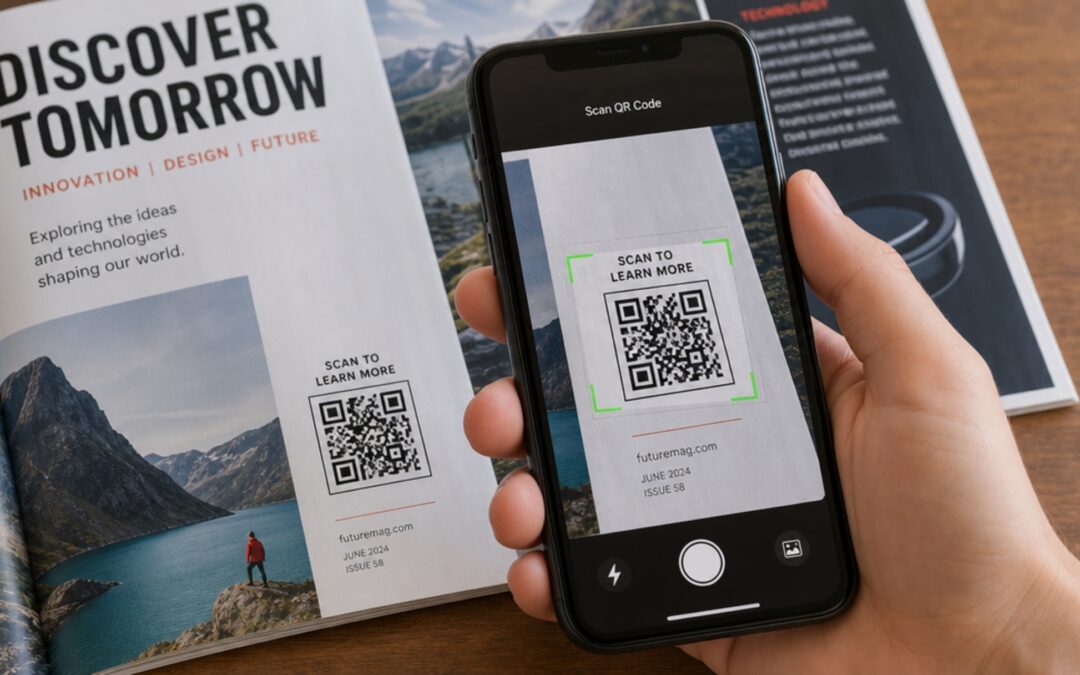
To test the code, simply set your smartphone to camera and point it towards the code on screen. Small corner brackets will appear on your phone screen and encompass the code you have just designed.
A dropdown or notification will appear on your phone showing what the QR code contains. If you chose URL, it will display the website address you entered. If you have a paid account with tracking and analytics, the link will route through a short tracking URL before sending the visitor to the destination — this is how scan counts are recorded for your dashboard.
This is to register the scan and track it for further analytics. Once you have created and tested your QR Code to your satisfaction, depending on whether you have a free or paid account, you will be given the option to download or save and download your new QR Code.
You can use your QR Code either online or offline; add it to websites, social media accounts, and emails. It can be downloaded and printed for use on magazines, business cards, brochures, and even greeting cards; there are limitless applications for QR Codes .
Step 6. Finally, what should you do if your new QR Code does not work?
- Be sure you have chosen colors for the background and foreground that strongly contrast.
- Check the size of your logo relative to the QR code itself. Logos covering 25% or more of the code often interfere with scanning. Keep logos at 22% or smaller for best results
- Testing your QR Code is crucial and will help identify issues prior to committing to downloading or saving.
- Also try not to create either tiny or giant codes, as this may cause them to break.
In conclusion, with a little patience and practice, you can easily develop the skills required to create interesting, practical, useful, and professional QR Codes. If you require further assistance, please contact us at support@freecustomqrcode.com. We will get back to you with the answers within 48 hrs.